
Nice Tower Plus · Outdoor architecture study
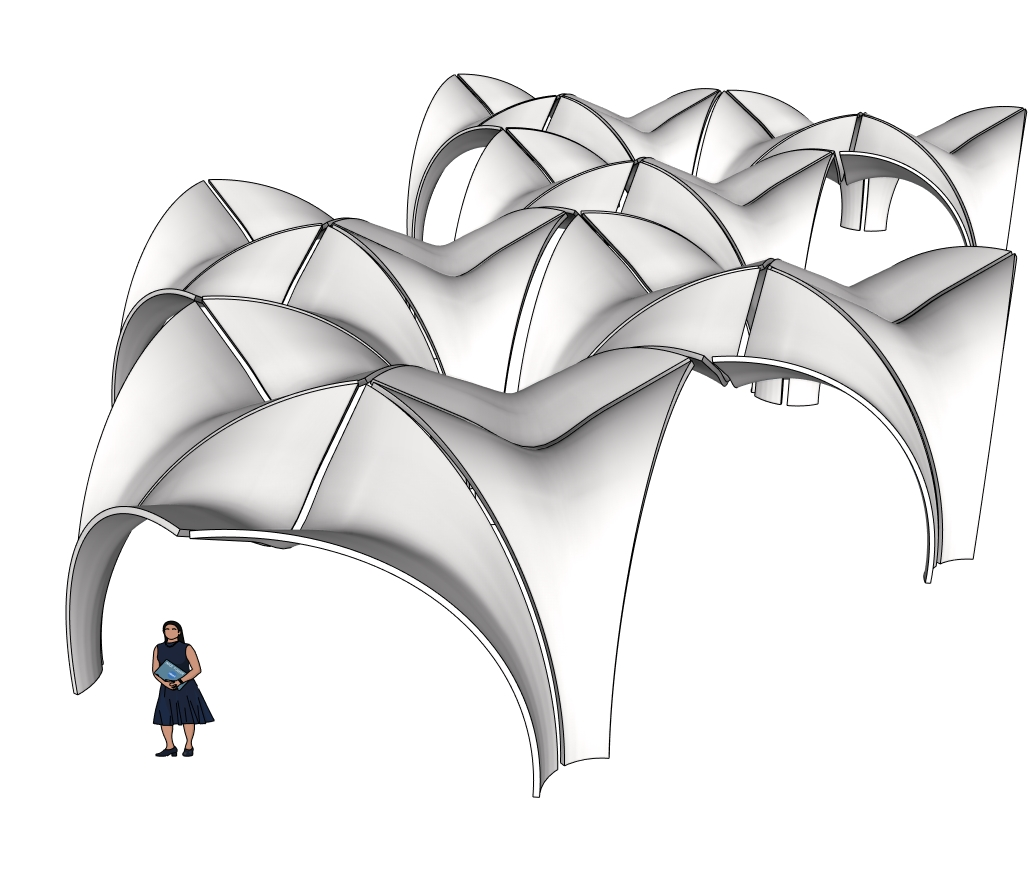
Explore this Confluence Park SketchUp model through four preview views and a complete Nice Tower tutorial. Study the pavilion’s flowing petal shapes, build curved surfaces with Curviloft, and compare how mirrored elements join into a continuous canopy.
This is an educational digital reconstruction inspired by Confluence Park in San Antonio, Texas. It is a modeling exercise, not an official construction model or an engineering specification.
- Project file
- Confluence Park-v_2018.skp · SketchUp model
- Modeling lesson
- 6:03 · Demonstrated in SketchUp 2026
- Tools demonstrated
- Bezier Toolbar, Curviloft and Fredo6 JointPushPull
- Study focus
- Organic architecture, curved shell forms and repeated pavilion geometry
Confluence Park SketchUp model: inspect the geometry
The previews show open arches, tapered supports and curved roof petals meeting along pronounced edges. Compare the views before editing: the underside explains the arch openings, while the elevated view makes the repetition and roof junctions easier to understand.
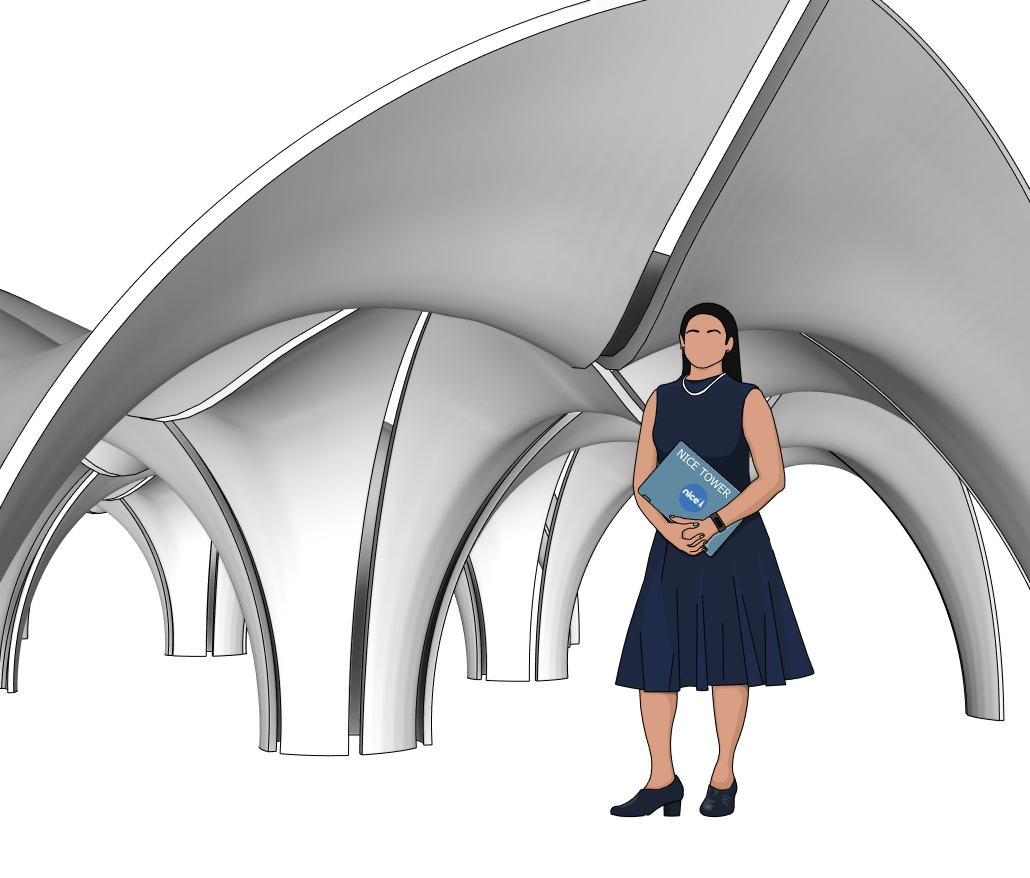
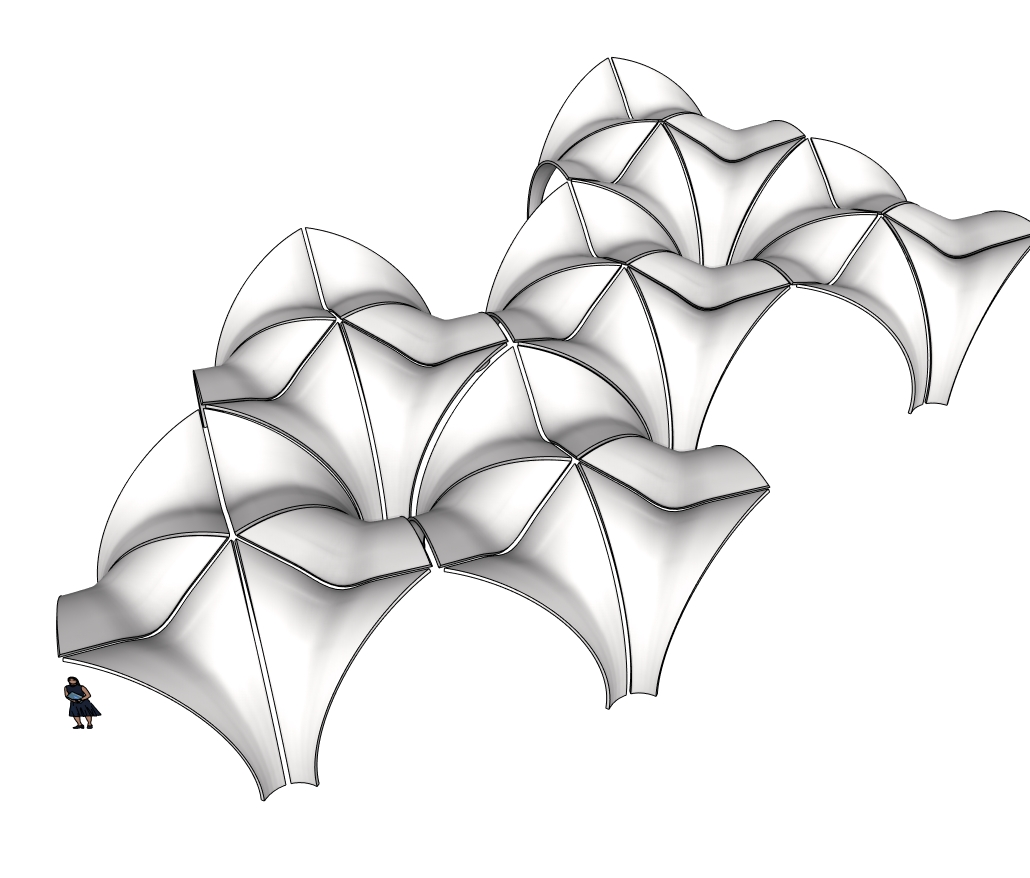
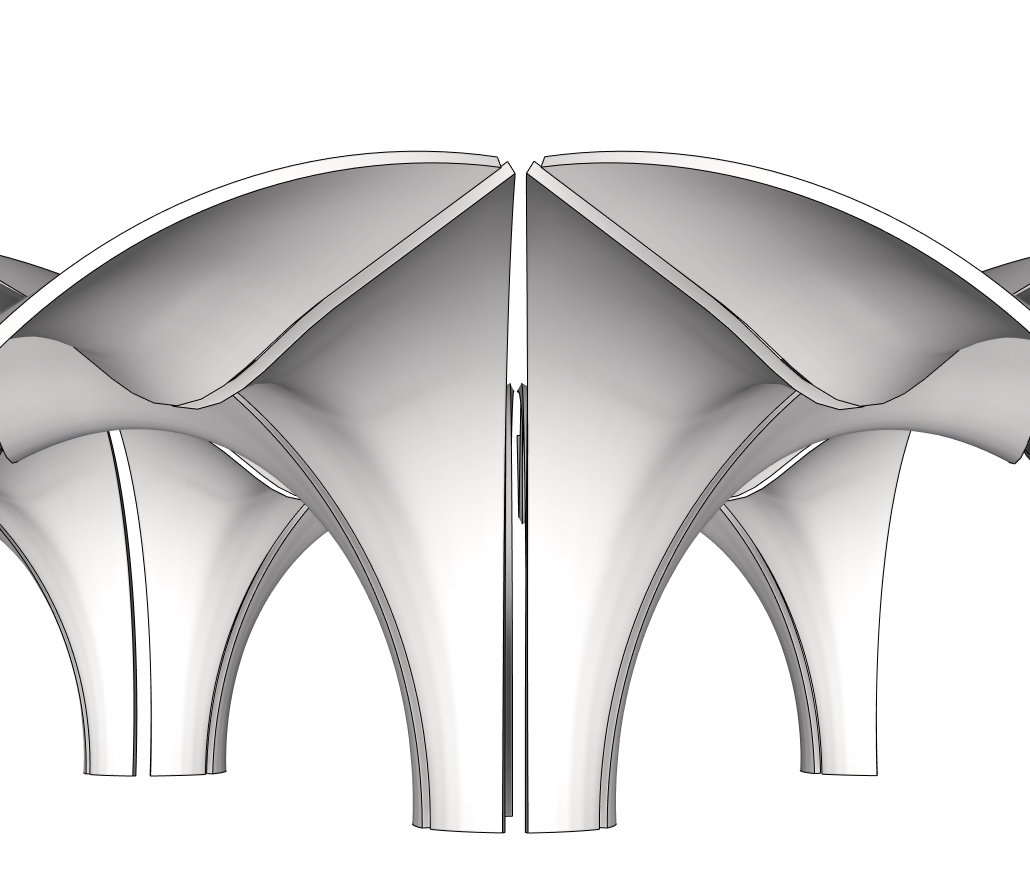
Watch: how to model Confluence Park in SketchUp
The original Nice Tower lesson demonstrates base geometry, custom curves, surface generation and assembly. Watch each stage, then repeat it on a small working copy rather than editing the full pavilion immediately.
Open the full tutorial on YouTube ↗
Build a curved pavilion with Curviloft and JointPushPull
- Prepare the profiles — 00:35. Use Polygon, Arc and Offset to establish the starting geometry. Keep a copy of the original profile so later changes can be compared.
- Refine the arches — 01:30. Extrude the initial shape and adjust arc segmentation. More segments can smooth the silhouette, but unnecessary subdivisions make the file heavier.
- Shape the connecting curves — 02:30. The lesson uses the Catmull Spline tool in Bezier Toolbar. Check the curve from more than one view before using it as a surface boundary.
- Generate the curved surface — 03:28. Use Curviloft between the prepared edges. Inspect the surface direction and seams before committing to repeated copies.
- Add thickness — 04:11. Fredo6 JointPushPull thickens the curved surface; the lesson demonstrates 10 cm. That is a tutorial setting, not a verified structural thickness for the built pavilion.
- Assemble the pavilion — 04:41. Mirror, copy and rotate the elements. Compare junctions and openings as you expand the arrangement; the final model is shown from 05:18.
A useful practice task
Save an untouched copy, then isolate one petal pair. Make a second version with a changed boundary curve. Compare the arch opening, the roof silhouette and the junction to its neighbor using identical camera views. This reveals whether your edit improves one view while creating a gap in another.
Check file units, component organization and face orientation in SketchUp before importing the study into another project. The filename identifies a 2018-format version; the linked lesson is recorded in 2026. Confirm opening and extension compatibility in your own SketchUp installation.
The San Antonio pavilion behind this study
Confluence Park sits at the meeting of the San Antonio River and San Pedro Creek. Its architecture was designed by Lake|Flato and Matsys. The built pavilion’s concrete petals provide shade and help channel rainwater; these project functions explain why its curved surfaces are more than a decorative gesture.
For the original architecture and design credits, see Lake|Flato’s Confluence Park project and Matsys’ geometry and fabrication explanation. Use those references to distinguish the real building from this simplified SketchUp exercise. Neither the previews nor the download verify structural behavior, drainage performance or fabrication dimensions.
Continue with related SketchUp studies
Compare repeated outdoor frames
The Twisted Frame Pavilion model offers a different way to study rhythm, spacing and a changing roof silhouette.
Explore another outdoor canopy
Use the Twisted Wooden Pergola study to compare repeated timber-like members with the continuous shell forms shown here.
Find more subjects in the Outdoor SketchUp model collection, browse SketchUp tutorials, or explore the Nice Tower Pro plugin library for related extension guides. Check developers’ current requirements and licenses before installing tools.
Questions about this pavilion model
Is this the official Confluence Park construction model?
No. This is a Nice Tower educational reconstruction for practicing curved architectural geometry. The original project credits belong to the designers identified above.
Do I need plugins to open the SKP file?
Opening existing SketchUp geometry and recreating the demonstrated workflow are different tasks. The tutorial uses Bezier Toolbar, Curviloft and JointPushPull to build the forms. Verify your SketchUp version and each extension’s requirements before reproducing those operations.
Can I use the download for construction or sell it?
The file is offered for personal modeling practice and educational study under the Nice Tower Plus model usage policy. Commercial use and redistribution require separate permission. It is not construction documentation.
Download the Confluence Park SketchUp model
File: Confluence Park-v_2018.skp. Save a working copy before editing. Google Drive may show its own download or sign-in prompt depending on file access and your browser.
Get the SketchUp project file ↗
Personal and educational practice · Read the usage policy